macOS 26 Voice Transcription: Setup Guide for Developers (2026)
In this guide
macOS 26 (Tahoe) quietly shipped one of the most useful upgrades for developers: Dictation now runs on Apple's on-device foundation model. Not the old speech recognition — an actual AI model running locally on your Mac.
If you tried Mac Dictation a couple years ago and gave up, it's worth another shot.
What's new about Dictation in macOS 26
Before Tahoe, macOS Dictation used older speech recognition that needed an internet connection for best results. macOS 26 replaced the underlying engine with Apple's foundation model, running entirely on your Apple Silicon chip. In practice:
- Better general accuracy — noticeably improved for everyday speech and common tech terms like "React" or "API." Still struggles with niche developer vocabulary, but a big step up.
- Fully on-device — no audio leaves your Mac. This matters if you're dictating anything work-related.
- Lower latency — no network round-trip. You speak, it transcribes.
- Smarter punctuation — the model inserts commas and periods based on your speech cadence rather than waiting for you to say "period."
- It's free, and it's only getting better — Apple is shipping more GPU cores and memory with every new Mac. Local transcription and AI processing will keep improving year over year, and you're not paying a dime for it. If you're on a subscription-based dictation product, this is worth considering.
What you need
- Apple Silicon Mac (M1 or later) — Intel Macs don't get the foundation model
- macOS 26 (Tahoe) or later
Step 1: Enable Dictation
- Open Apple menu > System Settings
- Click Keyboard in the sidebar
- Scroll to the Dictation section and toggle it On
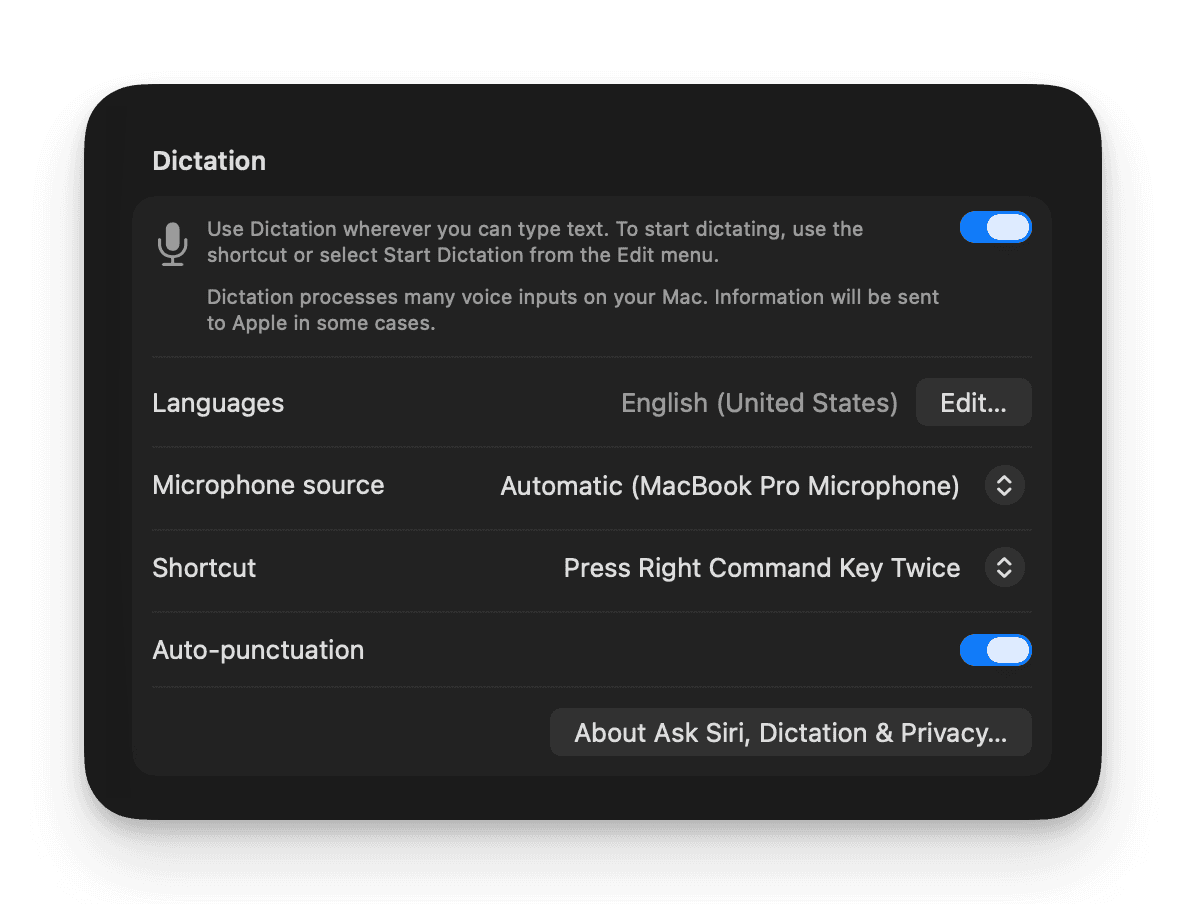
Make sure Auto-punctuation is on — it's one of the best parts of the foundation model upgrade.
Step 2: Pick your hotkey
In the same System Settings > Keyboard > Dictation panel, click the Shortcut dropdown. The best options for most developers are Control Key Twice (fast, doesn't collide with IDE shortcuts), Globe/Fn Twice, or the Microphone Key if your MacBook has one. You can also define a custom shortcut.
Tip
I use Control Key Twice for built-in Dictation and the Fn key for Doing — that way I have quick access to both without conflicts. If you only need one, Control twice is fast and doesn't interfere with IDE shortcuts in Cursor, VS Code, or Xcode.
Step 3: Start talking
- Click into any text field
- Press your hotkey — a microphone icon appears
- Speak naturally — text appears in real time as you talk
- Press the hotkey again (or click Done)
That's it — you've got voice transcription built into your Mac for free!
Using voice transcription in developer workflows
After a few months of daily use, here's where it sticks:
Dictating prompts to AI coding tools
This is the big one. When you're working in Claude Code, Codex, Cursor, Amp — or chatbots like Perplexity, ChatGPT, and claude.ai — better prompts get better results. But typing out a detailed, context-rich prompt is slow, so most people write short, vague ones instead.
Voice changes the math. You can dictate a 200-word prompt in about 30 seconds. That's the difference between "fix this function" and "this function is supposed to validate email addresses but it's letting through strings without an @ sign, and it also needs to handle the edge case where there are multiple @ symbols — reject those too."
Writing Slack messages and PRDs
Slack threads, product specs, design docs, RFC comments — anything where you need to explain your thinking in more than a sentence or two. You tend to explain things more clearly when you talk through them versus type them.
I'll often dictate a first pass, then spend 30 seconds cleaning it up. Still faster than typing from scratch.
Code review comments
When you're reviewing a PR and need to explain why something should change (not just what), dictation is great for this. Talk through your reasoning like you'd explain it to the person sitting next to you.
Capturing ideas without losing context
Mid-coding session, an idea for a different feature hits you. Press the hotkey in Obsidian or Apple Notes, say it out loud, and get back to what you were doing. Ten seconds, no flow break.
Tips from actual daily use
Speak normally. The foundation model was trained on natural speech. Over-enunciating or speaking slowly actually makes it worse. Just talk like you're explaining something to a coworker.
Add tricky words to Text Replacements. The model handles common programming terms fine, but your company's product names, coworker names, or niche library names might get mangled. Add them via System Settings > Keyboard > Text Replacements.
Don't watch the words appear. I find the real-time transcription distracting — you start second-guessing word choices mid-sentence. Better to look away, finish your thought, then review.
Use a headset mic in noisy spaces. The built-in mic works well in a quiet room, but AirPods or any headset mic will give you noticeably better accuracy in a coffee shop or open office.
Where macOS built-in dictation falls short
I use macOS Dictation every day, and it's genuinely good now. But there are real gaps:
- Struggles with programming-specific vocabulary — general terms like "React" and "API" are fine, but the model wasn't trained for developer speech. Library names, CLI commands, variable names, and domain-specific jargon get mangled regularly. If you're dictating anything code-adjacent, expect to correct a lot.
- No post-processing — the model does a good job stripping filler words automatically, but beyond that, what you say is what you get. There's no way to reformat for email tone, summarize, translate, or apply any other transformation to the output.
- No transcript history — your words go wherever your cursor was, then they're gone. No searchable log, no daily record of what you dictated.
- Short bursts only — Dictation is designed for a sentence or paragraph at a time. It's not a recording tool for meetings or long brainstorming sessions.
Doing: going beyond built-in Dictation
If voice transcription is becoming part of your daily workflow, the built-in limitations start to matter. Doing picks up where Apple leaves off.
-
Instant transcription — Doing's default engine is NVIDIA Parakeet, running locally on Apple Silicon via CoreML. It's often 10x faster than Apple's foundation model — short clips are transcribed before you can blink.
-
Agent workflows and YOLO mode — enable auto-return and Doing will press Enter after pasting your transcription. Speak a prompt into Claude Code or Codex, hit your hotkey, and it submits automatically. Same for Slack messages, terminal commands, search bars, or any chat interface.
-
UX designed to keep you focused on your idea — a small waveform pip follows your cursor while you're recording, so you always know Doing is listening no matter what app you're in. And unlike Apple Dictation, Doing deliberately doesn't show your words as you speak them. No live transcript means no cognitive overhead from reading and second-guessing mid-sentence — you just talk, and the text appears when you're done.
-
Developer dictionaries — 660+ pre-mapped corrections across AI, software engineering, and product vocabulary. "Clawed code" becomes "Claude Code." "Super base" becomes "Supabase." You can add your own words too. Details in the Words and Dictionaries guide.
-
Transcript history as Markdown — every transcription saved as a daily
.mdfile in~/Documents/Doing/. Search your voice notes in Obsidian, reference them later. -
AI-powered Skills — markdown prompts that transform your transcription before it hits the clipboard. Clean filler words, formalize for email, summarize, or write your own. Different Skills for different apps. Details in the Skills guide.
doing.
100 free transcriptions · $49 once · No subscriptionFAQ
Does macOS 26 Dictation work offline?
Yes. The foundation model ships with macOS 26, so Dictation works entirely on-device with no internet connection. Your audio never leaves your Mac.
Does Dictation work in VS Code and Cursor?
Yes — it works in any standard macOS text field. Click into the editor or a comment field, press your hotkey, and dictate. It also works in the integrated terminal's text input areas, though not in the raw terminal output.
How accurate is it for programming terminology?
Hit or miss. Common terms like React, TypeScript, Python, API, and JSON transcribe correctly most of the time. But anything more specific — library names, CLI flags, internal project terms — frequently needs manual correction. Apple's model is a general-purpose dictation engine, not one trained on developer speech.